newj

Showing posts with label Seo. Show all posts

Wednesday, 10 February 2016

GoSkills Microsoft Office Bundle


The GoSkills Microsoft Office bundle consists of 12 Office e-learning courses that improve your Excel, PowerPoint, Word, Access, Outlook and Project skills.
All 12 courses are suitable for all experience levels and taught by Microsoft MVP instructors.
The bundle includes six Excel courses that take you from beginner to expert, two Microsoft Word courses, and one PowerPoint, Project, Access and Outlook course each.
Here is the full list of courses:
  • Microsoft Excel - Basic
  • Microsoft Excel - Basic & Advanced
  • Microsoft Excel - Advanced
  • Pivot Tables - From Novice to Ninja
  • Microsoft Excel for Mac - Basic
  • Microsoft Excel for Mac - Advanced
  • Microsoft PowerPoint
  • Microsoft Word - Basic
  • Microsoft Word - Advanced
  • Microsoft Project Fundamentals
  • Microsoft Access Basics
  • Microsoft Outlook
You can click through to the GoSkills website for additional details. There you find among other things the curriculum for each course as well as the supported Office versions (from what I can tell, Office 2013 is always supported, while some courses support Office 2016 as well).
Gain the skills to be more efficient with your time, extract crucial information, and deliver impressive presentations. This training covers the essentials of the Microsoft Office Suite in order to give you the knowledge to take your career to new heights. For each of the 12 courses, you’ll take home a certification with the instructor’s nod of approval.
  • Access 12 courses & 97 hours of Microsoft Office training
  • Take 6 Excel courses to go from beginner to expert
  • Use math, statistical, logic & text functions
  • Organize data by sorting & filtering
  • Effectively present your data in several chart formats & more
  • Find a value w/ VLOOKUP
  • Create & format PivotTables
  • Improve your PowerPoint presentations w/ 34 engaging lessons
  • Learn how to use themes, layouts & audio visual components
  • Make professional documents in Microsoft Word
  • Create forms & reports w/ Microsoft Access
  • Manage projects more efficiently w/ Microsoft Project
  • Streamline your correspondence in Microsoft Outlook

Saturday, 3 January 2015

How to report HTML bugs with the new post editor

We’d like to thank everyone who has been trying out the new post editor on Blogger in Draft and putting it through its paces. As many of you have noticed,   the   new   editor   handles   HTML   somewhat   differently   from  the   old   editor, and tricks and conventions you may be used to are not working or screwing up your post’s formatting.


We would like to fix as many inconsistencies and problems as we can before we unleash the new editor on all Blogger users, so we’d really appreciate reproducible bug reports when you see a problem.

The three key pieces of a helpful bug report are:
  • “I typed/clicked/did…”
  • “I expected to see…”
  • “What I really saw was…”
For example:
My post template is:

<span id="fullpost">
Full post
</span>

I opened up a new post in Firefox on XP and typed two paragraphs in Compose mode. When I switched back to Edit HTML, I expected to see:

<span id="fullpost">
First paragraph

Second paragraph
</span>

But what I saw was:

<span id="fullpost">
First paragraph</span>

<span id="fullpost">
Second paragraph</span>
Comments on this post are a fine place for these bug reports, or, if you post them on a blog, just link to them from the comments.

We realize that writing about HTML can be tricky in the post editor or the comments form. You can replace “<” with “&lt;” or put a space right after the “<” to prevent the editor from treating it as HTML. Or, if you make the post with the new editor, you can turn on “Show HTML literally” in the Compose Settings section of the Post Options.

While we can’t commit to making the new editor work exactly like the old in every regard (if we did, that might break some of the new useful features, such as drag-and-drop image placement), we really want to keep the differences down to as few as possible. Your feedback and bug reports will make this possible.

New toolbar, AJAX saving, and other fixes for the post editor

Today we’ve released a few enhancements to the new post editor, fixed some bugs, created a new one or two, and left a handful of things to fix later.


New Stuff


  • AJAX save. We’re still not saving posts automatically, but now the “Save Now” button will keep the post editor open, and Ctrl-S works as a shortcut for saving. (Internet Explorer users: use Ctrl-Shift-S to save.)
  • New toolbar. This toolbar looks better, loads more quickly, and has undo and redo buttons. By popular demand, the full justification button has returned. We’ve also added a strike through button and improved the color palettes.
  • Vertical resizing. You can now change the height of the post editor by dragging the resize handle in the lower right (near the labels field). The size is saved in a per-user, per-blog preference.


Fixed Bugs


  • <div>s in Edit HTML are now better-preserved in Compose mode. This should fix most post summary hacks. If your hack uses <span> tags, please switch to using <div>s.
  • Lists created in Compose mode can now have new items added to them after switching to Edit HTML and back.
  • Line breaking is no longer lost when editing a post in the old editor that was first written in the new editor.
  • Nested block-level elements no longer create odd blank lines.
  • Non-breaking spaces now consistently appear as &nbsp; in Edit HTML mode.


New Bugs (that we know about)


  • The publish and save buttons wrap oddly on Mac browsers.


Major Remaining Bugs (that we know about)


  • The Font Size menu has 4 sizes instead of 5, and “normal” looks small.
  • Paragraph tags are lost when switching from Edit HTML to Compose.
  • The Blockquote button still behaves oddly, especially in Internet Explorer.
  • The URL an image links to cannot be changed without using Edit HTML mode.
  • Images inserted with this editor do not pick up border styles from the blog template.
  • Inserting a new link with the link dialog loses your place in the post. 


Find anything else? See: How to report HTML bugs with the new post editor


Things Left To Add


  • Toolbar in Edit HTML mode
  • Autosave
  • Spellcheck
  • Video upload
  • FTP image upload
  • Bi-directional text input and Indic transliteration 
  • and a handful of smaller things too numerous to include here

New Feature Contact Picker

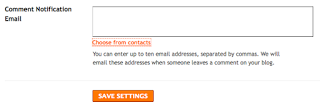
We’re making it easy to use your existing Gmail contacts in Blogger. We’ve added a “Choose from contacts” link below some of your blog’s settings fields, such as Comment > Comment Notification Email and Email > BlogSend Address. Click the link to bring up a window with your Gmail contacts list.

Currently we don’t have the picker built in to the Permissions settings, but we’re working on it.

Better Mobile Posting

Blogger already has several ways to post via a mobile device, but who knew? With our last release to Blogger In Draft, we've made it a lot easier to set up mobile posting to your blog via SMS, MMS, and email.

If you already have a blog on Blogger, you can configure mobile posting by going to your Blogger Dashboard on draft.blogger.com.

Enable SMS or MMS for your mobile device by clicking on the gray phone icon next to your blog name.


We'll show you a claim code that you can send to Blogger via SMS or MMS to register your device and link it to your blog.


Once you've registered your device, you're done! Messages you send to BLOGGR (256447) will be posted to your blog. Note: SMS posting on Blogger currently does not work with T-mobile devices.

To enable Email posting to your blog, return to your Blogger dashboard and click on the gray envelope icon. You'll see a dialog that prompts you to define a secret email address.


Emails you send to this email address will be posted to your blog. Include a photo in your post by sending it as an attachment. Blogger will insert the photo between the title and the body of your post.

To edit your Mobile settings, you can click on the phone or envelope icons on your Blogger Dashboard, or go to the Settings > Email & Mobile tab.


If you are away from your computer, but want to create a blog on-the-go you can also create a blog directly from your mobile device. Follow these instructions to create a blog from your phone and claim it later.

Let us know how the service goes by leaving a comment. If you experience problems please tell us what type of device you're using, your cellular carrier, whether you used SMS, MMS, or Email posting, and your blog URL. Also please note that SMS posting is not yet available for T-mobile devices.

Contribute Gadgets to Blogger

Calling all Developers! We've just launched several extensions to the Gadget API that will enable developers to build more relevant and engaging gadgets for Blogger.


As you may already know, every Blogger blog is a gadget container. What's more, every blog is an OpenSocial gadget container powered by Friend Connect. That means as a gadget developer you can leverage social APIs to build engaging tools for bloggers and their audience.

In addition to leveraging social data, gadgets can now access a blog's post and comment feed via new JSON APIs. For example, with this data you could easily build a map gadget that maps the geo-location of posts, or a "Most Commented On" gadget that ranks posts by the number of comments they've received.

Need to be inspired? Recently we asked our users what gadgets they most wanted to see in Blogger. Hundreds responded and here's their wish list.

When you build a gadget for Blogger, it becomes available to millions of active bloggers. Just submit your gadget to us, and within thirty minutes it will surface in the Blogger gadget directory where users can easily browse, configure, and add your gadget to their blog's sidebar.
So now that you know Blogger is a great distribution platform for your gadget, what are you waiting for? Get started building Gadgets for Blogger now.

Important Note: The APIs and documentation are new, so there may be bugs. Let us know by posting to the Blogger Developer Group if you run into problems developing your gadget.

4 New Gadgets from Blogger Buster


Amanda from Blogger Buster has developed 4 new gadgets for your blog's sidebar. 


Display thumbnails of your most recent Picasa photos.
       Add it now


Share your recent Twitter updates
       Add it now


Show your most recent posts, with optional summaries
       Add it now


Show your most recent comments, with optional summaries
        Add it now


To add these gadgets go to your blog's Layout tab, click Add a Gadget, and then click Featured. There you'll find Amanda's gadgets along with other gadgets we are currently featuring.


You can stay updated when featured third-party gadgets are added by subscribing to the Blogger Featured Gadget blog.

Interested in building useful gadgets for bloggers? Get started now by reading the Blogger Developer Documentation.


Note: Currently some third-party gadgets will not display correctly in the Chrome browser. We are working on a fix for this.

You Might As Well Jump

It's time to announce another Blogger Birthday feature! Many users have been asking for an easy way to implement "Read more" links on their blog's index page. In fact, for years bloggers have been implementing "Read more" jump breaks themselves by manually editing their HTML --- a process that was complicated and error prone.

Today we are excited to announce our latest birthday present: Jump Breaks.

With Jump Breaks you can show just a snippet of your post on your blog's index page. Blogger will insert a "Read more" link to the full post page where your readers can keep reading.


There are a couple of ways to insert a "Read more" jump to your posts. If you use the new post editor (available on Blogger in Draft, or by enabling it via the Settings tab), you'll notice the "Insert jump break" icon in the editor's toolbar. Click this icon and the "jump break" will be inserted into your blog post at your cursor's position.


If you don't use the new post editor, you can still insert a jump break in Edit HTML mode by adding <!-- more --> where you want to position the jump break.


Want to change the "Read more" text to something more your style? No problem. You can edit the "Read more" text by clicking Layout and then Edit the Blog Posts widget.


One more note, the Jump Break feature does not change how your post appears in your feed. You can configure post feed options by going to Settings | Basic | Site Feed, and editing Allow Blog Feeds.

Update: Users that have customized their Blog Posts widget or otherwise have highly customized templates: You may need to edit your HTML to enable Jump Breaks. First, back up your template, then follow the instructions at the bottom of this help article.

Look Up Words as You Compose

We recently added a dictionary with definitions and translations to "Blogger in Draft." Here's a quick tour of the feature and its functions.

Look up definitions: To look up the definition of a word or phrase, simply highlight it and click the dictionary icon in the editor's toolbar:


This will open the dictionary's Define tab, where you can view definitions for words and phrases across 12 languages.

Get synonyms: If you'd like to see synonyms for an English word, begin by looking up its definition as above. Then, click a hyperlinked synonym to browse to its definition, and click Insert or Replace to add the currently displayed word to your composition:


Currently, synonyms are available only in the English dictionary.

Translate: You can use the Translate tab of the dictionary to translate words and phrases between over 50 languages.


Similar to the Define tab, you can navigate translations by clicking them and can feed them back to the post by clicking Insert.
We hope you find this dictionary a useful composition tool. Please let us know what you think by leaving us a comment below. Thanks!

Pages come to Blogger In Draft

Update (1/21 @ 8:54am PST): We've temporarily disabled creating & editing pages. You can still view the pages you've already created. We will re-enable ability to create and edit pages soon.


Update (1/21 @ 9:32pm PST): Pages are back on.


Pages have been a top requested feature, and they are now available on Blogger in Draft!

Blogger Pages lets you to publish static information on stand-alone pages linked from your blog. For example, you can use Pages to create an About This Blog page that discusses the evolution of your blog, or a Contact Me page that provides directions, a phone number, and a map to your location.


You create a page similar to how you write a blog post. From Blogger in Draft click the Posting | Edit Pages tab, then click New Page. (Note: you can create up to 10 pages.)


Once your page is published, you can link to it from the new Pages widget. The Pages widget lets you add links to your pages as tabs at the top of your blog, or as links in your blog's sidebar.


In the Pages widget, you can decide which pages will have links, and in what order they will appear. You can also choose whether or not you want links automatically created for pages when you create them by checking or unchecking the box to the left of Add new Pages by default.


Finally, for those of you that have custom templates, your custom template may not automatically support Pages as horizontal "tabs". If you are familiar with HTML, follow these instructions on how to add Pages to your custom template.

Improvements to Blogger In Draft's Text Editor

We've made a couple of improvements to the Text Editor on Blogger in Draft! 

Add captions to your photos 

Now you can easily add captions to the images you include in your blog posts! To add a caption, simply click on the image you've inserted, and click Add caption.


Then you can write your caption just below the image. 


Expandable Edit Region

In addition to captions, we've recently added another new feature for you verbose bloggers out there. You can now expand the text area of the editor to give yourself more room as you type. To make the editor region larger, simply click the corner of the editor and drag it down.


The editor window will also grow automatically as you run out of space.

Faster Video Uploading

Your time is very important to us, and we are continuously working to make your experience on Blogger fast and easy. We know that it's no fun waiting for your videos to upload, so we've recently made speed improvements to make your videos upload faster.

Let us know what you think of these features in the comments below, and thanks for using Blogger!

Better Photo Uploading

We recently updated the photo uploading interface in Blogger in Draft’s post editor with a few new features:
  • Multiple photo upload. If you have Flash installed, you can select multiple photos at a time in the file picker, and all of them will get uploaded at once.
  • Picasa Web Albums integration. You can now select from any of the images in your Picasa Web photo albums and insert them into your posts.


Tips from the Blogger Team:
  • You can upload multiple images at once, but then only insert them into your post one-at-a-time. When you re-open the image picker the photos you uploaded before will still be there. This gives you the most control over where your images go, while still keeping the upload process convenient.
  • Take advantage of the Picasa Web Albums integration. If you use Picasa to manage your photos on your computer, you can automatically sync your photos to Picasa Web Albums and then pick them right from the post editor. Not using Picasa? You should try it! It’s a free download for Windows, Mac, or Linux. (iPhoto users: Try the free Picasa Web Albums Uploader that works with directly with iPhoto.)
  • Your uploaded photos will still be there even if you close and re-open the post editor. With the old uploader, images only stuck around in the picker for your current editing session. Now you can upload everything when you start writing your post without worrying about losing any work.
  • Caption your images. We recently added captions to the post editor on Blogger in draft. While this isn’t directly related to the new uploader, it’s a nifty feature that you should try out if you haven’t yet. Find out more
A note on the Picasa Web Albums integration:  

We’ve actually been storing and serving your blog’s images from Picasa Web Albums for a few years, but we haven’t taken full advantage of that integration until now. You may see photos that you uploaded in the past but you never ended up using in a post, but don’t let that alarm you:Blogger always uploads images to an Unlisted photo album. That means that unless you log in to Picasa Web Albums directly and share the photos, the only place they’d ever be seen by anybody is on your blog. Learn more about Picasa Web Albums’ privacy settings

If you do want to clear out those unused images, you can log in to Picasa Web Albums and delete them, but be careful: deleting photos from Picasa Web Albums will remove them from your blog if they’ve been used in a post. So if you’re going to delete, only delete what you’re sure never got posted.

Let us know what you think!

We apologize for the bit of a rocky release this feature had last week, and we’re still tidying up some remaining problems. (We’ve heard reports of the uploader not working in Safari, which our engineers are looking into.) If the photo uploader is not working for you, please let us know in the comments what browser, operating system, and version of Flash (if any) you’re using. Then, if you need to upload photos, use the editor on www.blogger.com. (You can switch to “Updated editor” in Settings > Basic and get most of the features from Blogger in draft, but the older photo uploader.)

It wouldn't be Blogger in Draft if we weren’t trying out new things and listening to your reactions, so please give it a try and tell us what you think.

Friday, 2 January 2015

Update Facebook Status via Any Device.

Update Facebook Status via Any Device !

I don’t have a MacBook professional or Blackberry phone however still I updated status via MacBook professional as you'll be able to see within the below snap.


Don’t you own any smart-device ? and still need to update your Facebook status showing “via” that device? Thenyou are at the correct place as you'll be able to update status via distinction devices ranging from Nokia 1100 to mechanical man to iPhone . From currently on, no want feel upset once your friend updates statusfrom his high-ticket gadgets. All you've got to try and do is Click on the below links and update your statusinside the conventional means.

·         Is this technique safe OR not?
Update Facebook Status via Android : HERE
·         Update your Facebook status via the BULLET PROOF phone ! , yes you guessed it right ,Update status via NOKIA 1100 : HERE
·         Update Facebook status via Nokia : HERE
·         Update Facebook status via Nasa Satelite : HERE
·         Update Facebook status via A potato : HERE
·         Update Facebook status via Google Nexux 7 : HERE
·         Update Facebook status via Play Station 3 #PS3 : HERE
·         Update Facebook status via Windows Phone : HERE
·         Update Facebook status via Xbox Live : HERE
·         Update Facebook status via Twitter : HERE
·         Update Facebook status via Harry Potter: HERE
·         Update Facebook status via Samsung Galaxy s4 : HERE
·         Update Facebook status via Fifa 2012 : HERE
·         Update Facebook status via Foursquare : HERE
·         This will blow everyone’s mind for sure ! Update Facebook status via Toothbrush : HERE
·         Linux – Update Facebook status via Ubuntu 64bits : HERE
Update Facebook Status via some Miscellaneous and Funny things :
·         Update Facebook status via My Bedroom: HERE
·         Update Facebook status via Microwave Oven : HERE
·         Update Facebook status via Refrigerator : HERE
·         Update Facebook status via Toaster HERE
·         Update Facebook status via COKE in CAN : HERE
·         Update Facebook status via MY TOILET SEAT: HERE
·         Update Facebook status via Avril Lavinge : HERE
·         Update Facebook status via Indonesia : HERE
·         Update Facebook status via Library : HERE
·         Dreaming something? then Update Facebook status via dream : HERE
·         Flying somewhere, then update Facebook status via AirAsia: HERE
·         Want to look Cool Tech Geek ?, then update Facebook status via Itadda.com : HERE
·         Update Facebook status via Airmail : HERE
·         Wishing someone special on Valentine’s day ? then Update Update Facebook status via Heart : HERE or via Be MyValentine : HERE
Update Facebook Status via Sony Devices :
·         Update Facebook status via Sony Xperia Z HERE
·         Update Facebook status via Xperia Arc S : HERE
·         Update Facebook status via Xperia X8 : HERE
·         Update Facebook status via Xperia Ray : HERE
Update Facebook Status via Apple Devices:
·         Update Facebook status via Ipad 2 : HERE
·         Update Facebook status via Apple Ipad 3 : HERE
·         Update Facebook status via Iphone 3GS : HERE
·         Update Facebook status via Iphone 4s : HERE
·         Update Facebook status via Iphone 5 : HERE
·         Update Facebook status via Apple Macbook Air : HERE
·         Update Facebook status via Macbook Pro : HERE
·         Update Facebook status via iOS 6 : HERE
·         Update status via iOS : HERE
Update Facebook Status via Windows Phone [NOKIA Lumia] :
·         Update Facebook status via Nokia LUMIA 928 : HERE
·         Update Facebook status via Nokia Lumai 920 : HERE
Update Facebook Status via Blackberry Devices :
·         Update Facebook status via Blackberry : HERE
·         Update Facebook status via Blackberry Pearl : HERE
·         Update Facebook status via Blackberry Bold 9000 : HERE
·         Update Facebook status via Blackberry Curve 9300 : HERE
·         Update Facebook status via Blackberry Curve 8520 : HERE
·         Update Facebook status via Blackberryz10 : HERE
Update Facebook Status via Samsung Devices :
·         Update Facebook status via Galaxy S2 : HERE
·         Update Facebook Status via Galaxy S3 : HERE
·         Update Facebook status via Samsung Galaxy Tab7.0+ : HERE
·         Update Facebook status via Samsung Galaxy Grand : HERE


Answer : fully, this technique is 100% safe. this is often the direct link to update status with API to those devices. thus there little doubt or question concerning safety !

Here we go, I even have listed all the devices names and a few places below. I bet you'll laugh on seeing some as they solely don’t be, LOL !

Hope you all enjoyed this impressive Facebook status 
transfer Trick. be happy to raise any question concerning this. Please share on social media if you wish.

Followers